How to move a Miro board over and add 3D to it
Export the board from Miro as a PDF, lay its pages out on an ARClip canvas and add what Miro lacks: 3D models, AI and AR.
3 min read
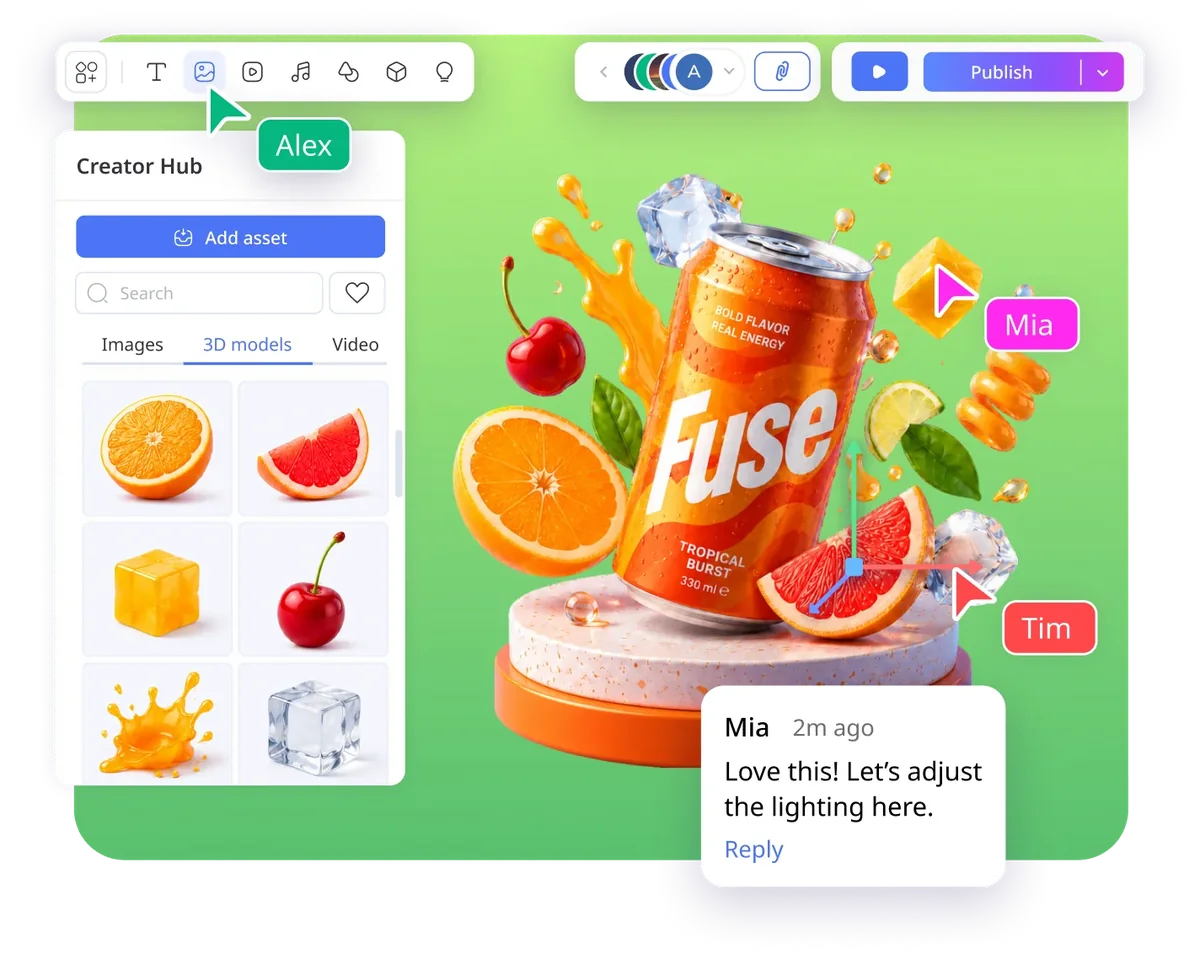
If your team lives in Miro but more and more of the work comes down to 3D — interior moodboards, product concepts, booth mock-ups — screenshots of models on the board stop helping fast. You can't turn them, look at them from every side or show them to a client in AR.
Here is how to move a board from Miro to ARClip in a few minutes and add what Miro doesn't have.
Step 1. Export the board from Miro as a PDF
- Put the board's content into frames: each frame becomes a page of the PDF, in the order shown in the board overview.
- In the top-left corner of the board, open the menu (…) → Board → Save as PDF.
- Choose the file size and click Export.
Step 2. Drop the PDF onto an ARClip canvas
Create a "2D board" project in ARClip and simply drag the PDF onto the canvas. Each page lands as its own picture — in order, in rows of five. Nothing to convert first: the file is read right in your browser.
Images work the same way: you can drop a batch of PNG, JPG and WebP files at once.
Step 3. Rebuild what has to stay editable
A PDF brings the board over as a picture, so its sticky notes and arrows are no longer editable. Whatever your team keeps working on, rebuild on the ARClip canvas — it has sticky notes, text, shapes, arrows and freehand drawing.
- Frames work well as separate scenes of the project.
- Voting and a timer come from the Voting and Timer plugins: one countdown and one vote per person for everyone in the session.
- Templates are in the community catalog, which keeps growing.
Step 4. Add 3D — the reason you came
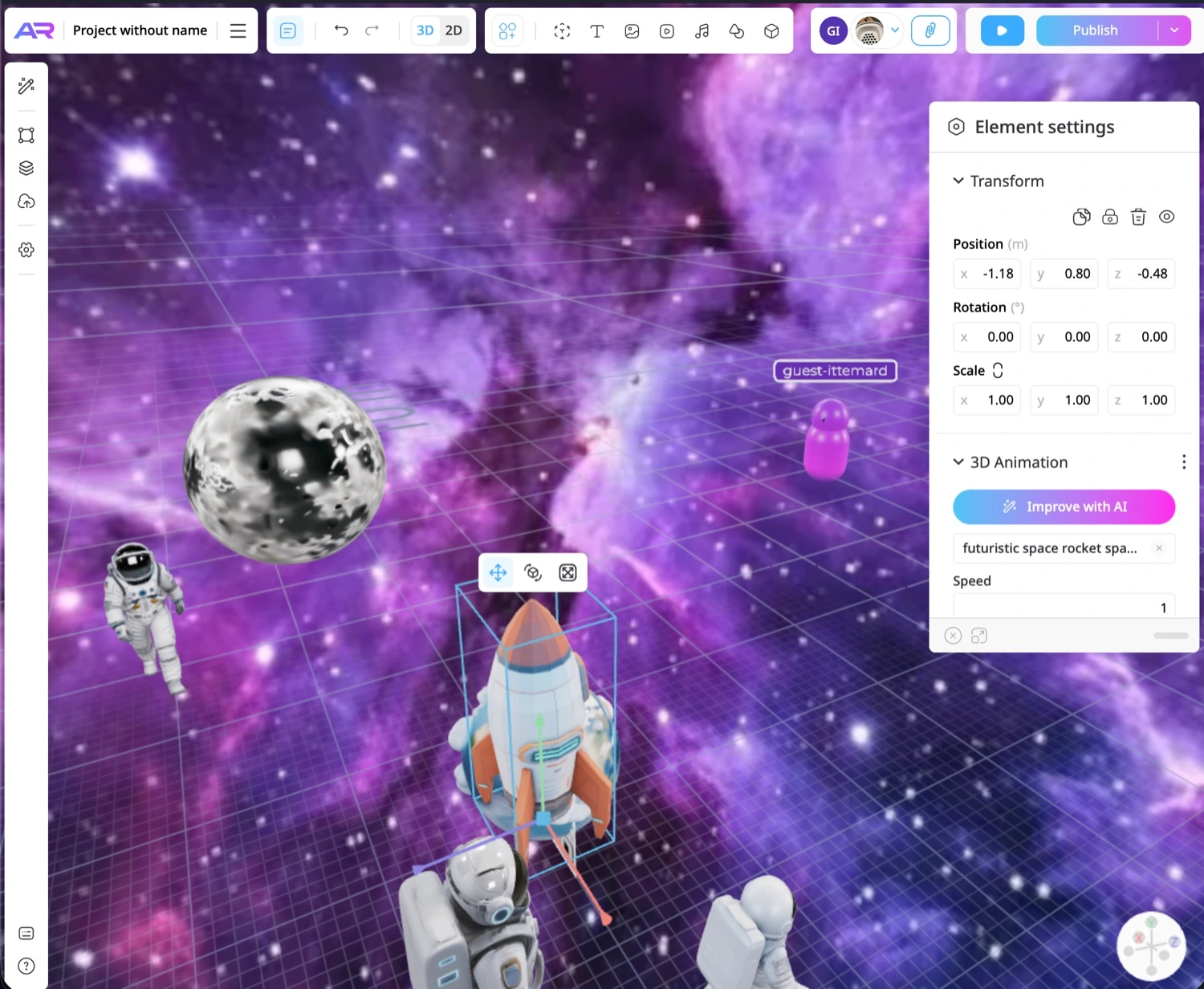
- Your own models. Drop GLB, glTF, FBX or OBJ onto the canvas — the editor turns them into GLB on its own. You can rotate the model and look at it right on the board.
- Ready-made models. Search your library, the community's or Sketchfab — often there is nothing to generate.
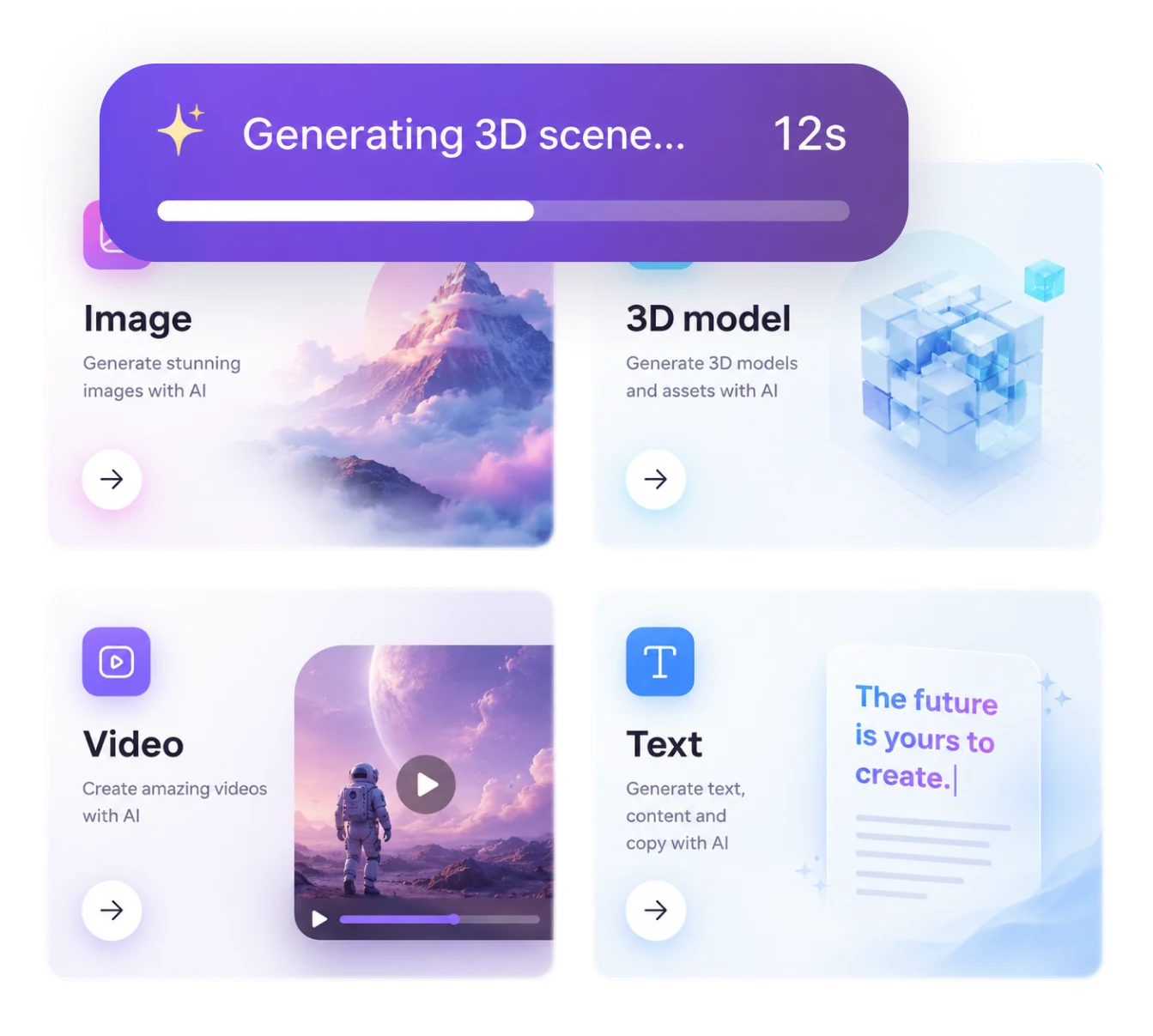
- Generation. An image, a video or a 3D model from a description, right on the canvas, for AI credits.
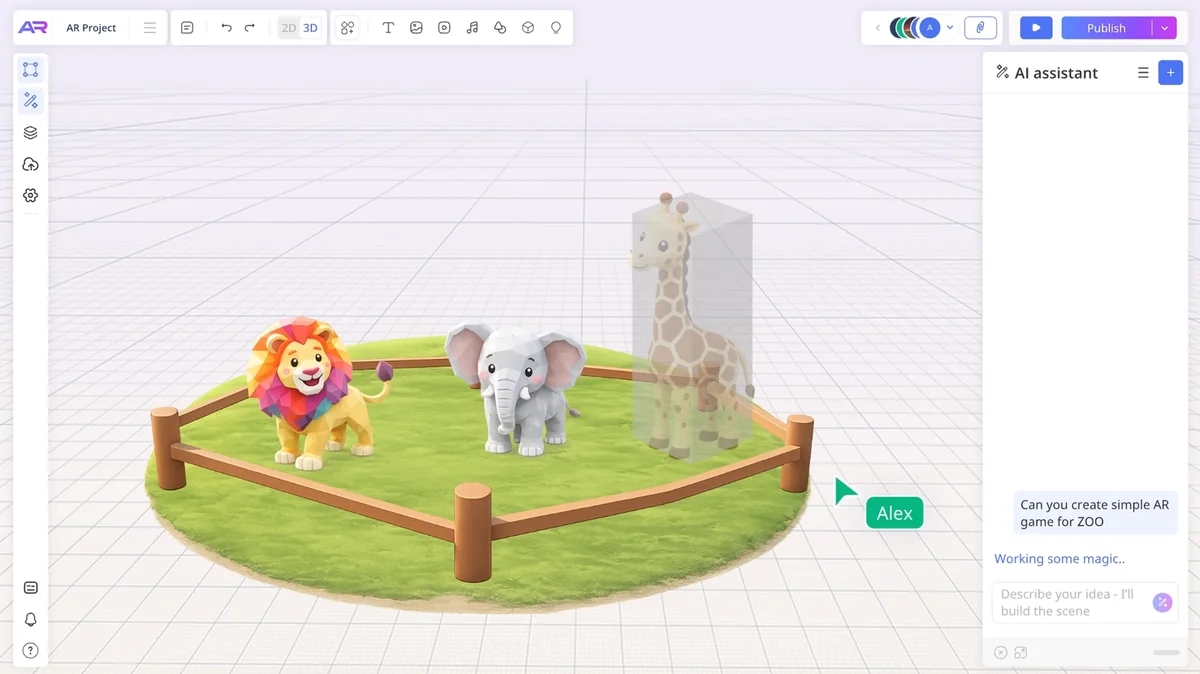
Step 5. Work together and show the result
Invite your team: edits show up in real time, comments sit right on the canvas, and you can talk it through in chat, by voice or on video, with screen sharing. When the scene is ready, publish it as a link or show it in AR on a phone.
What doesn't come over yet
To be straight with you: ARClip can't import Miro boards with editable sticky notes yet — only as a PDF or images. Exporting a board back to PDF isn't there yet either. If you rely on integrations with task trackers, or on kanban, see the detailed comparison — it shows where Miro is stronger: ARClip or Miro. Two more board comparisons: ARClip or FigJam and ARClip or Mural.
More from the blog
 AI & agents
3D model from a photo: make it and show it in AR
Turn a photo of an object into a 3D model with AI, place it in a scene and open it in AR on a phone. Step by step, plus what makes a good photo.Read 3D on websites
How to add a 3D model to your website and AR to a product page
Embed an interactive 3D scene in your page, add colour variants and a “View in AR” button — no code and no hosting of your own.Read
Try it on your own project
Open a workspace, describe what you want to build and see the first version in the editor. No card, no install.
Start building — free