MCP for 3D: how Claude and Cursor build scenes in ARClip
What MCP is, how to connect ARClip to Claude, Claude Code and Cursor, and what an agent can do in a live 3D scene — with example prompts.
3 min read
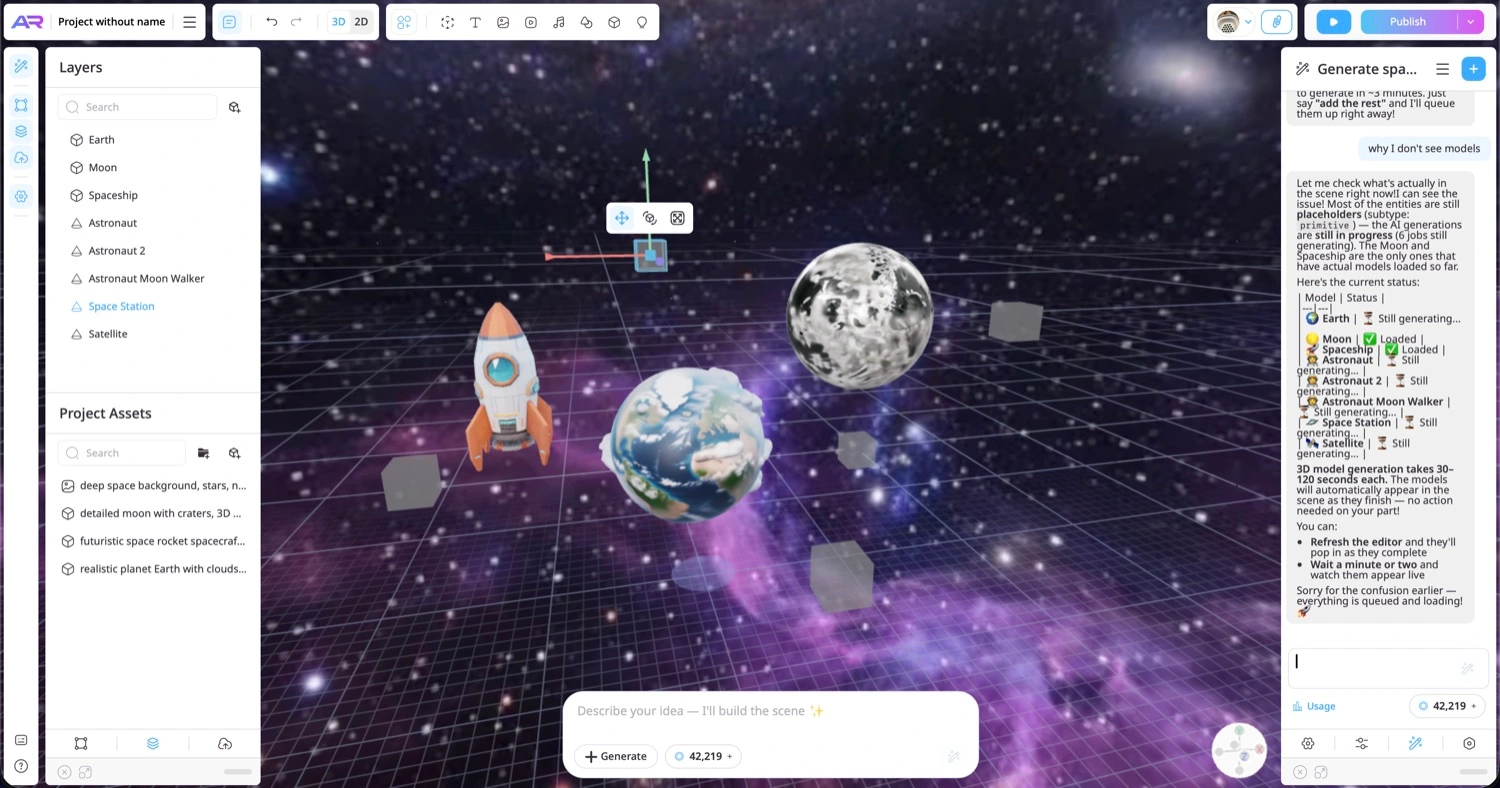
MCP (Model Context Protocol) is an open standard for connecting AI apps to outside tools. Claude, Cursor and other agents can work with any MCP server: read data, run actions and check the result.
ARClip has its own MCP server. Connect it, and an agent can build a 3D scene in your project: place objects, set up materials and light, add events and an interface, write scripts and check what came out. It all happens in the live editor: you see every change and can undo it like your own.
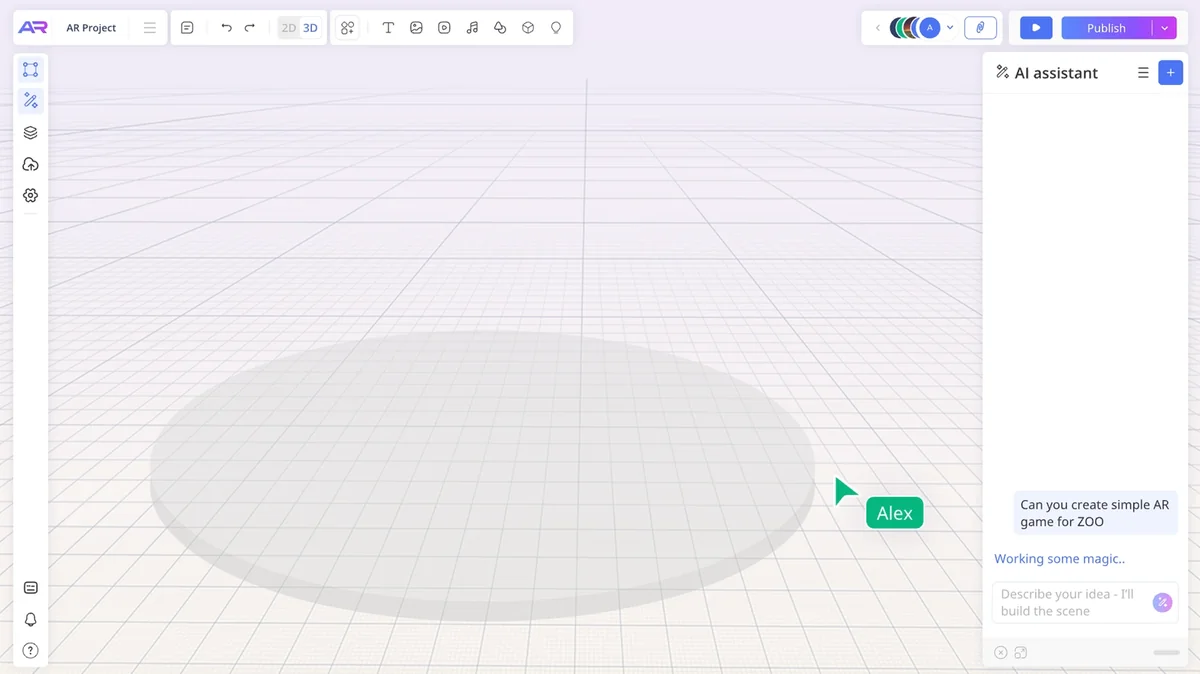
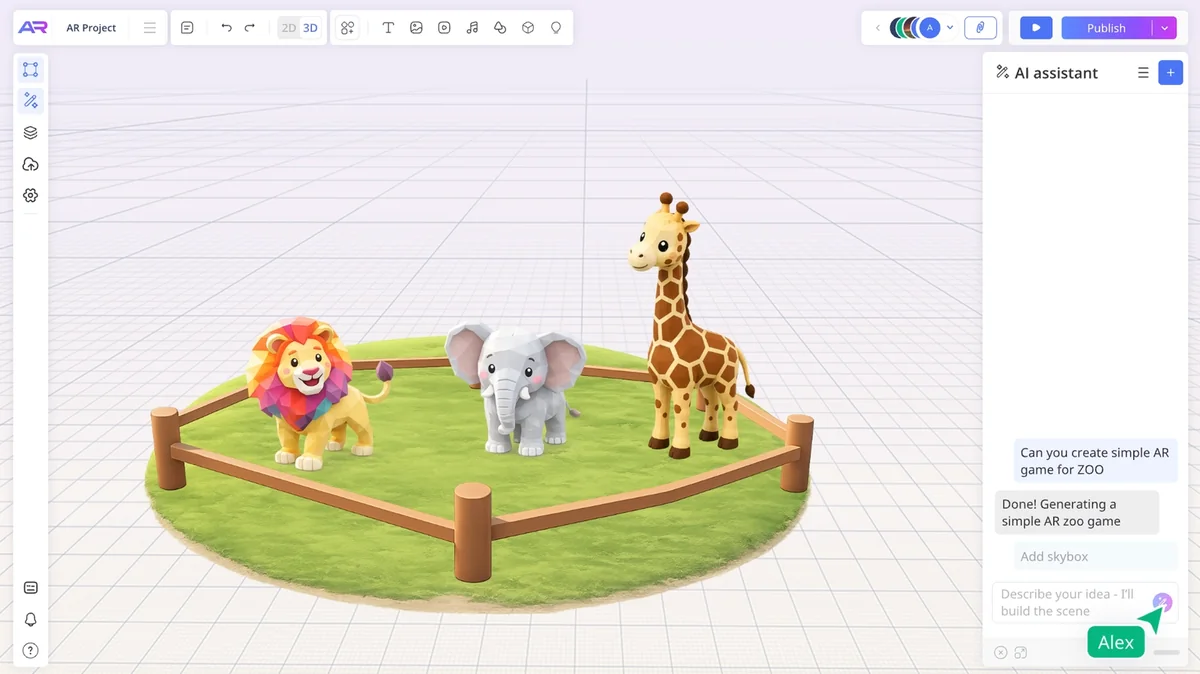
This is how it looks in the editor's built-in assistant. An agent connected over MCP works on the same scene, and you see each of its steps the same way.
How to connect
The server address:
https://editor.arclip.design/api/mcp/v1claude.ai or Claude Desktop. Open Settings → Connectors, click Add custom connector, paste the address and sign in when asked.
Claude Code. Add the server with one command, then start Claude Code and run /mcp:
claude mcp add --transport http arclip https://editor.arclip.design/api/mcp/v1Cursor. Add the server to .cursor/mcp.json:
{
  "mcpServers": {
    "arclip": { "url": "https://editor.arclip.design/api/mcp/v1" }
  }
}
The first time you connect, an ARClip page lists the permissions the app asks for: untick whatever you don't want to allow and press Allow. You can see and revoke access later in your account, under API & MCP.
What to ask for
- "Put a table here and four chairs around it" — the agent builds and places the objects while you watch.
- "Make the chairs the same blue as the logo" — it finds the colour and applies it to every chair.
- "Make the door open on tap" — it adds states and an event.
- "Find a ready-made armchair, and generate one if there isn't any" — it searches the library and Sketchfab first; generation uses AI credits.
- "Check the scene and show me a screenshot" — the agent checks its own work.
More ideas are in the docs: what an assistant does well.
A workshop with an agent
In a team project the agent is one more participant: its edits show up for everyone in real time and go into the edit history like yours. With the Timer and Voting plugins it can run a timed round, open a vote between options, read the result and carry on building with the winner.
An agent in a folder: the command line
If you work with a coding agent, install the arclip tool. It sets a folder up for Claude Code in one command, checks the scene, renders pictures and shows the draft on your phone through a QR code.
npm i -g arclip
arclip login
arclip link <project-id>
More on the CLI page and in the docs.
What each plan allows
On the free plan the agent can only read and check the project, up to 200 calls a month. Editing the scene and generating need a paid plan, and publishing the project needs one of the top plans. Generating images, video and 3D models uses AI credits.
More from the blog
 AI & agents
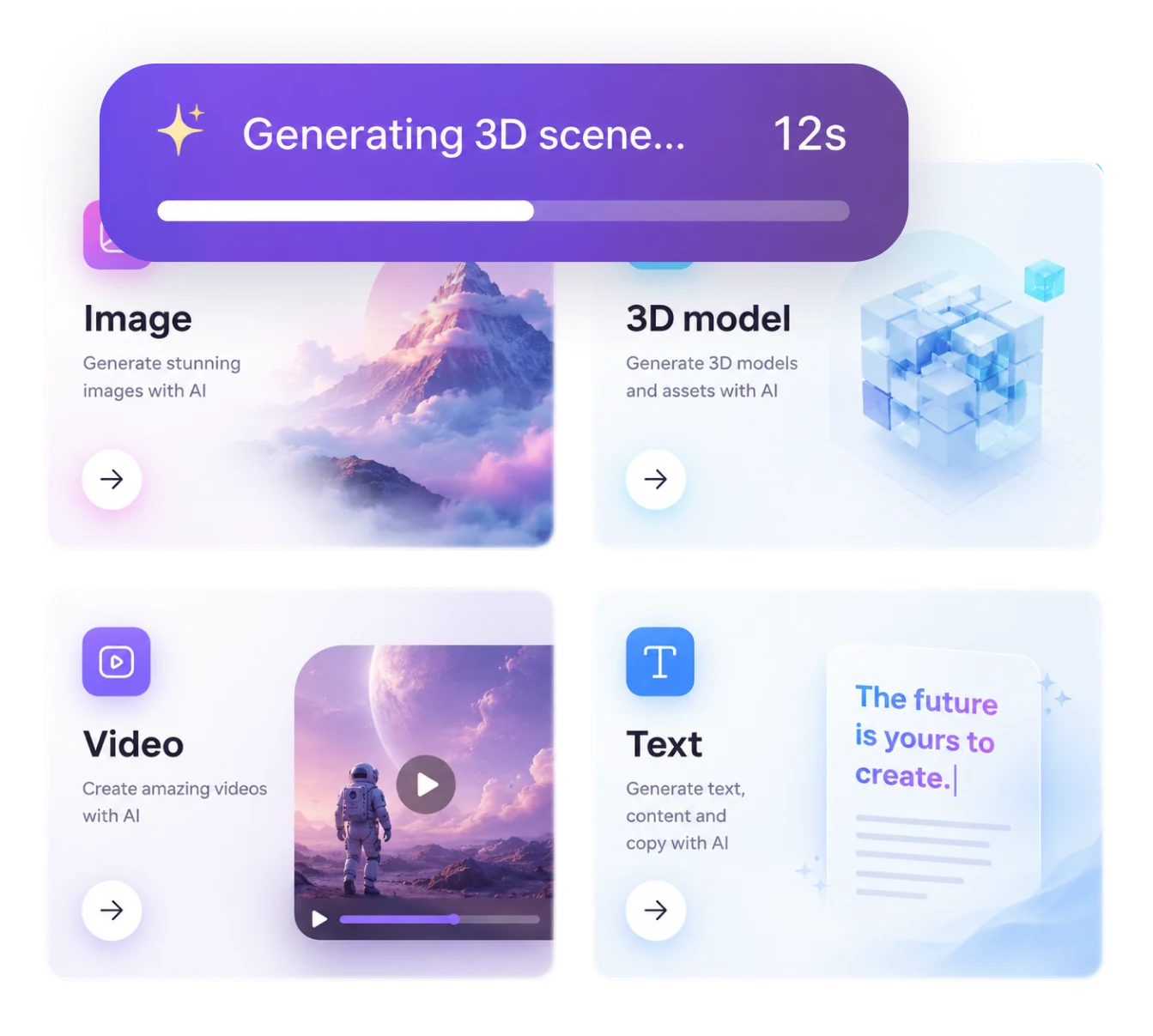
3D model from a photo: make it and show it in AR
Turn a photo of an object into a 3D model with AI, place it in a scene and open it in AR on a phone. Step by step, plus what makes a good photo.Read 3D on websites
How to add a 3D model to your website and AR to a product page
Embed an interactive 3D scene in your page, add colour variants and a “View in AR” button — no code and no hosting of your own.Read
Try it on your own project
Open a workspace, describe what you want to build and see the first version in the editor. No card, no install.
Start building — free